
 FTMO integration
FTMO Trading Journal
Bring your FTMO trades into one journal that analyses your challenge, your verification and your funded account side by side.
- Free for your first 25 trades
- No credit card required
- No access to your FTMO account, you upload the file yourself
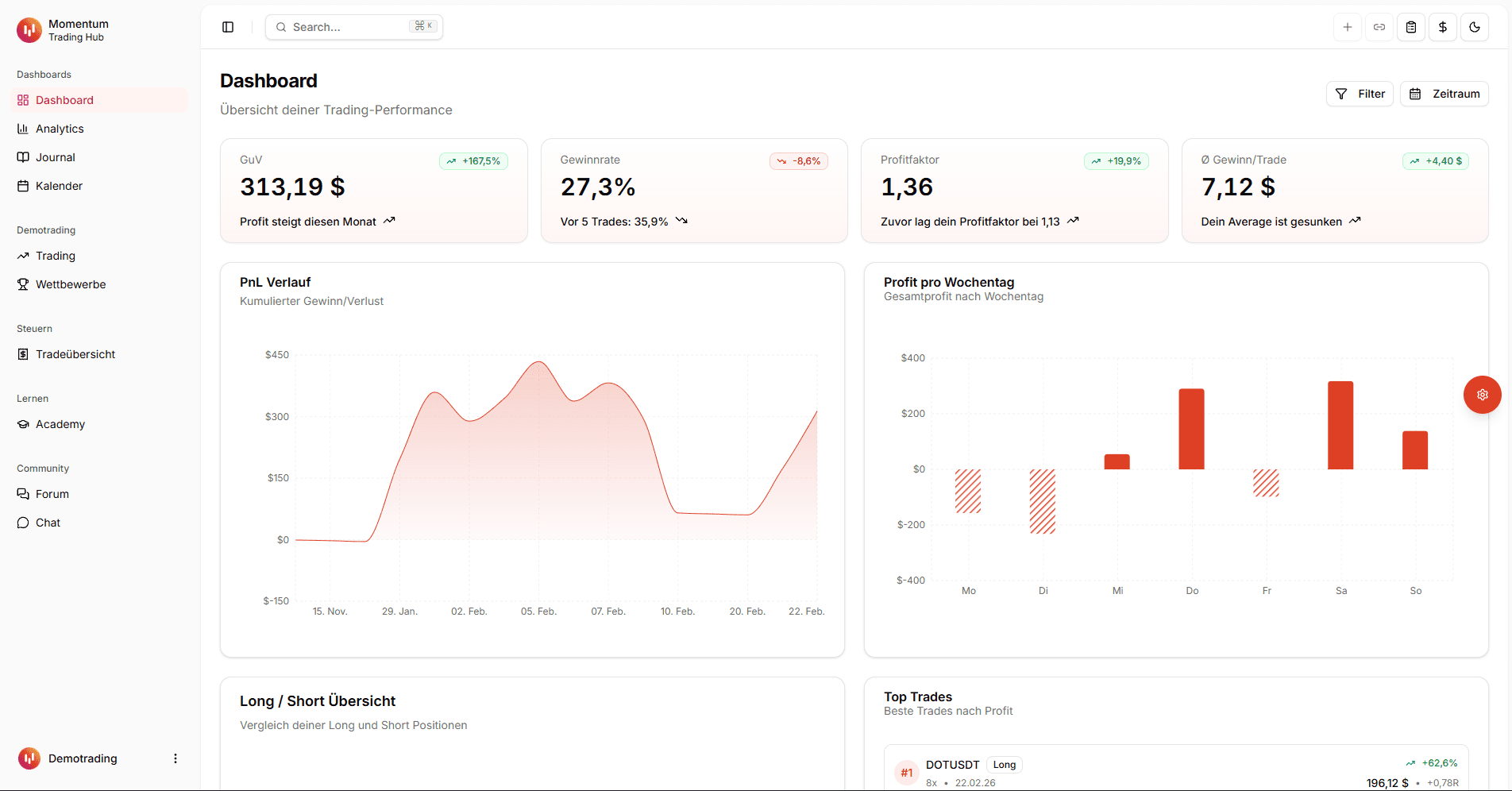
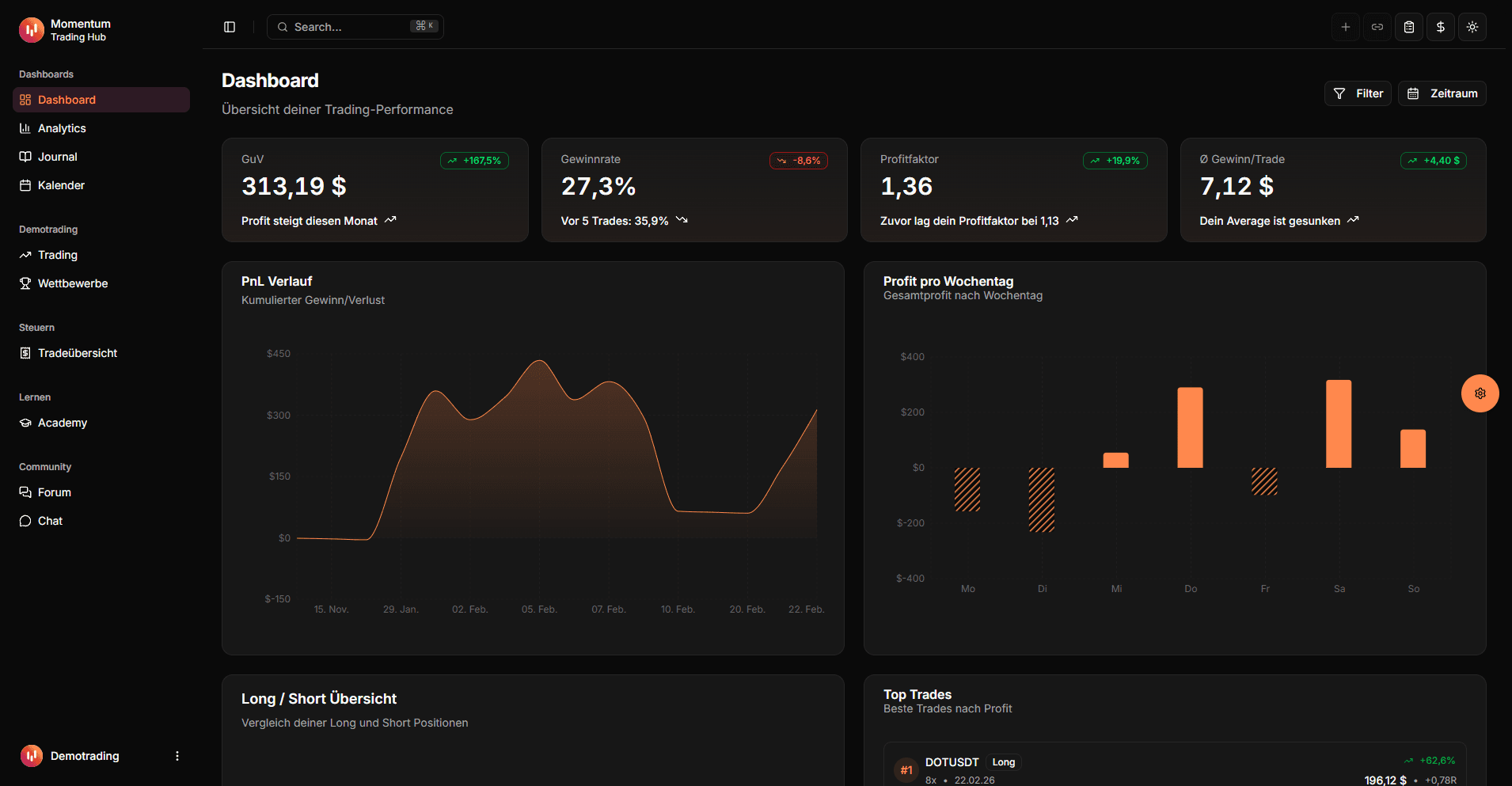
Can you import your FTMO trades?
Yes. There are two routes: the Trading Journal export from the FTMO Client Area (available as CSV or XLSX) and the account history report from your MetaTrader 5 terminal. Both produce the same result for the same trade, so you only need one of them.
FTMO does not offer a public trading API for third parties, so every import goes through a file you export yourself. Your credentials stay with FTMO and never reach us.
Two import routes
Trading Journal export or MT5 report, both land on the same result.
No credentials
You upload the file yourself. No access to your FTMO account is needed.
Every account together
Challenge, verification and funded account in one analysis instead of three spreadsheets.
Two ways to import FTMO trades
Use the Trading Journal export if you are already working in the Client Area. Use the MT5 report if you spend your time in the terminal, or when the Client Area export does not cover the exact period you need.
Route 1: export the FTMO Trading Journal
The export under "Account Metrics" lists every closed position as a single row with the result already calculated. CSV or XLSX makes no difference: both files share the exact same structure and go through the same importer.
- 1
Export-Format wählen
Nutze das Format "FTMO Trading Journal" für den Export aus der FTMO-Client-Area (CSV oder XLSX). Tradest du über MetaTrader 5, kannst du stattdessen das Format "MT5" (XLSX-Report) verwenden.
- 2
FTMO: Trading Journal exportieren
Melde dich in der FTMO-Client-Area an, öffne dein Konto unter "Account Metrics" und wechsle zum Bereich "Trading Journal". Wähle den gewünschten Zeitraum, sodass alle geschlossenen Trades enthalten sind, und lade den Export als CSV oder XLSX herunter.
- 3
MT5: Report erstellen
Im MetaTrader-5-Terminal: "Toolbox" → Reiter "History" → Rechtsklick → Zeitraum wählen → "Report" → "Open XML". Lade die erzeugte Datei hier hoch.
Route 2: the MT5 report of your FTMO account
This report comes from the MetaTrader 5 terminal itself rather than from FTMO. It therefore works for any FTMO account you trade through MT5, and it covers periods that are awkward to isolate in the Client Area.
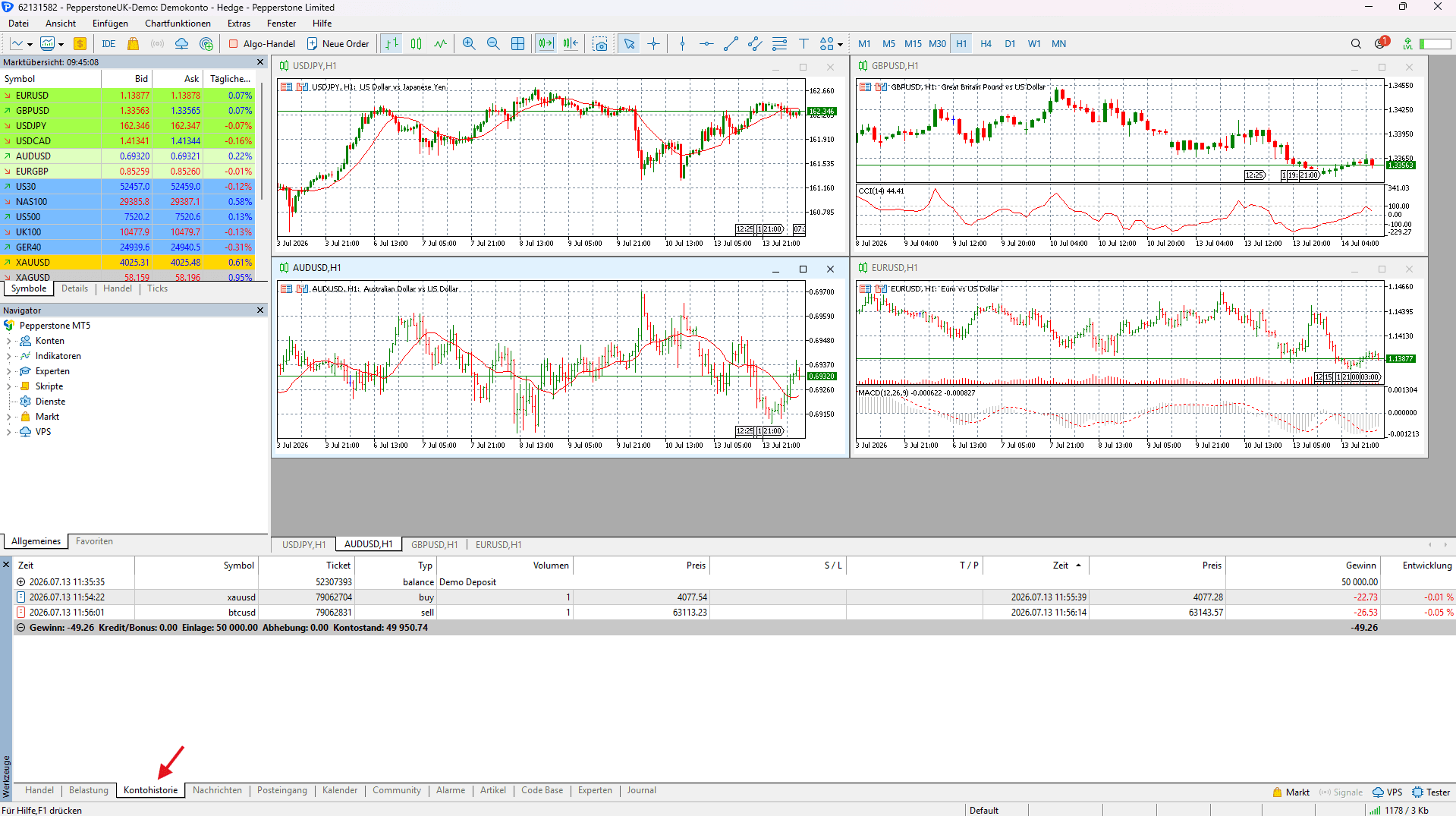
- 1
History-Tab im MT5-Terminal öffnen
Öffne im MetaTrader-5-Terminal unten den Bereich "Toolbox/Werkzeuge" und wähle den Reiter "History" (Kontohistorie).
- 2
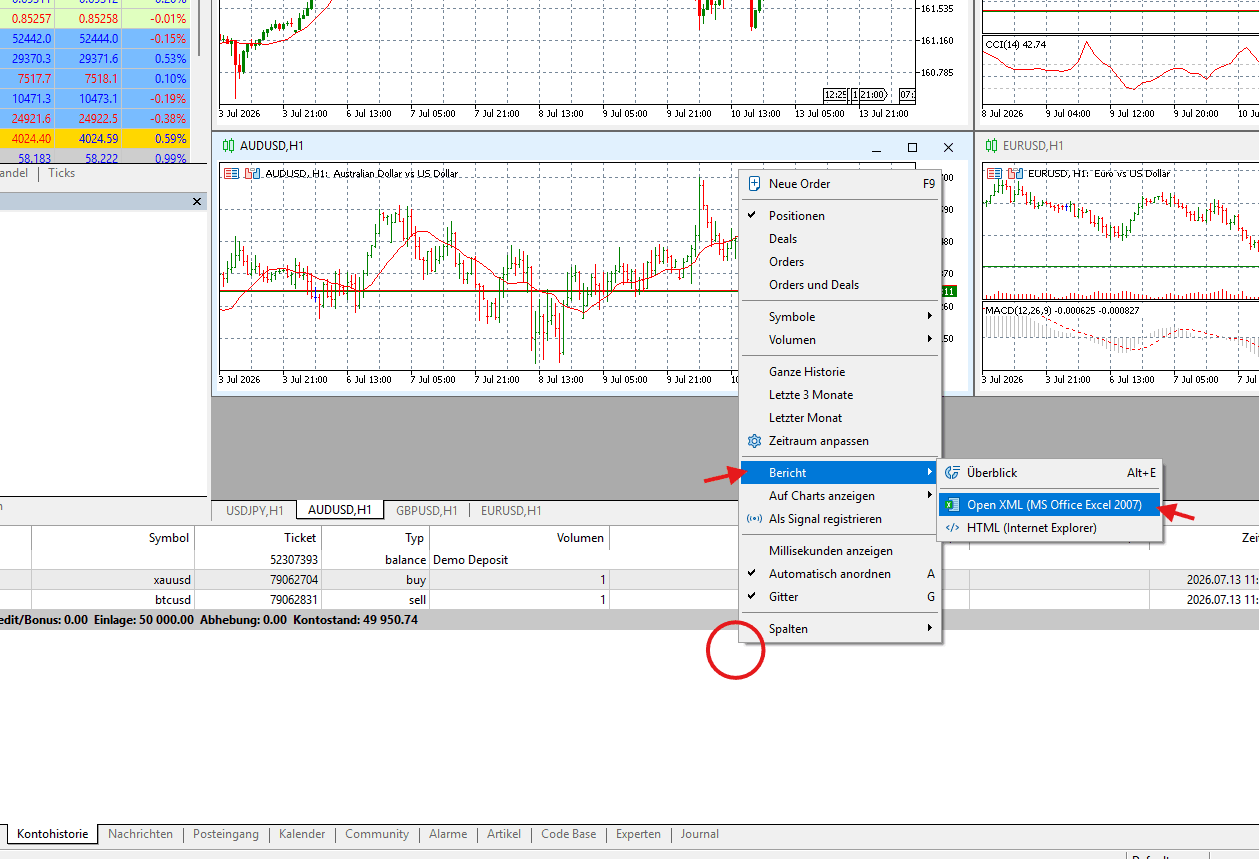
Zeitraum wählen & Report erstellen
Wähle per Rechtsklick den gewünschten Zeitraum ("Custom Period"), sodass alle geschlossenen Positionen enthalten sind, klicke dann rechts erneut und wähle "Report" → "Open XML".
What gets imported from the FTMO export
The importer reads columns by their position in the file rather than by their header text. That is deliberate: the FTMO Client Area is multilingual, so the header row arrives in English or German depending on your language setting. Reading by position keeps the import working either way.
| FTMO column | Journal field | Note |
|---|---|---|
| Ticket | External ID | Unique per account, prevents duplicates when you re-import |
| Symbol | Symbol | Broker suffixes are preserved, "GER40.cash" becomes GER40.CASH |
| Type | Direction | buy or sell |
| Lots | Position size | |
| Open / Close | Open and close time | FTMO exports server time without a timezone, the wall clock is kept as is |
| Price (open) / Price (close) | Entry and exit | The "Price" column appears twice, which is why position based reading matters |
| Profit | Result (net) | Taken as is, see the pitfalls below |
| Commission, Swap | Fees | Informational only, already included in the result |
What to watch out for with FTMO
Three quirks of the FTMO export regularly produce wrong numbers when nobody accounts for them. The importer already handles all three, but they matter just as much if you build your own spreadsheet.
The profit column is already net
Swap and commission are deducted inside the profit column and only appear separately for reference. Subtracting them again in your own analysis double counts your costs and makes your performance look considerably worse than it is. The importer takes the value as is and carries commission and swap along purely as information.
Using both routes does not create duplicates
If you upload the same period once as a Trading Journal export and once as an MT5 report, no duplicates appear. Both routes normalise symbols and timestamps the same way, so the same trade is recognised as the same trade. You can switch between them or deliberately overlap periods.
Open positions are not included
The export only contains fully closed positions with a final result. Rows without a symbol, type, timestamps or profit are skipped. If trades appear to be missing after an import, the first thing to check is whether they were still open at the time of the export.
Timestamps are FTMO server time
FTMO exports without a timezone and shows the trade server clock, which drifts from your local time depending on the season. The wall clock time is therefore kept unchanged rather than converted on a guess. It does not affect ordering or any metric, but it is worth remembering for time of day analysis.
Which metrics matter at a prop firm
At FTMO the profit alone does not decide anything. Staying inside the rules does. The maximum daily loss and the maximum overall loss are hard limits: breach one and the account is gone regardless of how good the preceding weeks looked. An analysis that only shows your balance will not help you there.
The useful numbers describe the losing side: your largest drop from a peak, your longest losing streak, and your average loss relative to your average win. Together with win rate and profit factor they show whether a result comes from a stable process or from a handful of oversized trades.
Because the journal holds every account in one place, you can also see how your behaviour differs between challenge, verification and funded stages. For many traders the real break sits exactly there: the same strategy, executed differently once real money is on the line.
Trading journal: What a trading journal does, which metrics matter and how it differs from a spreadsheet template.
Journal or your own spreadsheet
The FTMO Client Area shows numbers for the account you are currently trading. What it does not show is how you develop across accounts and attempts.
| Criteria | With a trading journal | With your own spreadsheet |
|---|---|---|
| Multiple FTMO accounts | All accounts in one analysis | One file per account |
| Fees | Net convention is built in | Double counting happens easily |
| Re-importing | Duplicates are detected automatically | Overlapping periods have to be cleaned by hand |
| Analysis | Metrics and charts available immediately | Every formula built and maintained yourself |
| Trade notes | Setup, mistakes and screenshots on the trade | Kept apart from the numbers |


Common questions about importing FTMO trades
Supercharge yourtrading performance
Start from zero with Momentum. Use our tools to improve your trading performance.