
 Pepperstone integration
Pepperstone Trading Journal
Pepperstone has no export of its own. What it does have are two established routes, and both end up in the same journal.
- Free for your first 25 trades
- No credit card required
- No access to your Pepperstone account, you upload the file yourself
Can you import your Pepperstone trades?
Yes, through whichever platform you trade Pepperstone on. If you trade through TradingView, export the order history there. If you trade through MetaTrader 5, generate the account history report in the terminal.
Pepperstone offers no trade export in its own interface, and none is needed: both routes deliver your actual fills with the results your broker calculated. At upload time you simply pick which of the two formats you brought.
Two routes
TradingView export or MT5 report, depending on where you trade.
No credentials
You generate the file yourself. No API key, no account access.
Multiple accounts
Demo, live and other brokers analysed side by side.
Two routes, depending on your platform
The choice follows where you trade rather than data quality. If you use both platforms, take the route that covers the longer period.
Route 1: TradingView order export
For accounts you trade through TradingView. The export lists individual orders, so make sure your period contains both the opening and the closing orders of each trade.
- 1
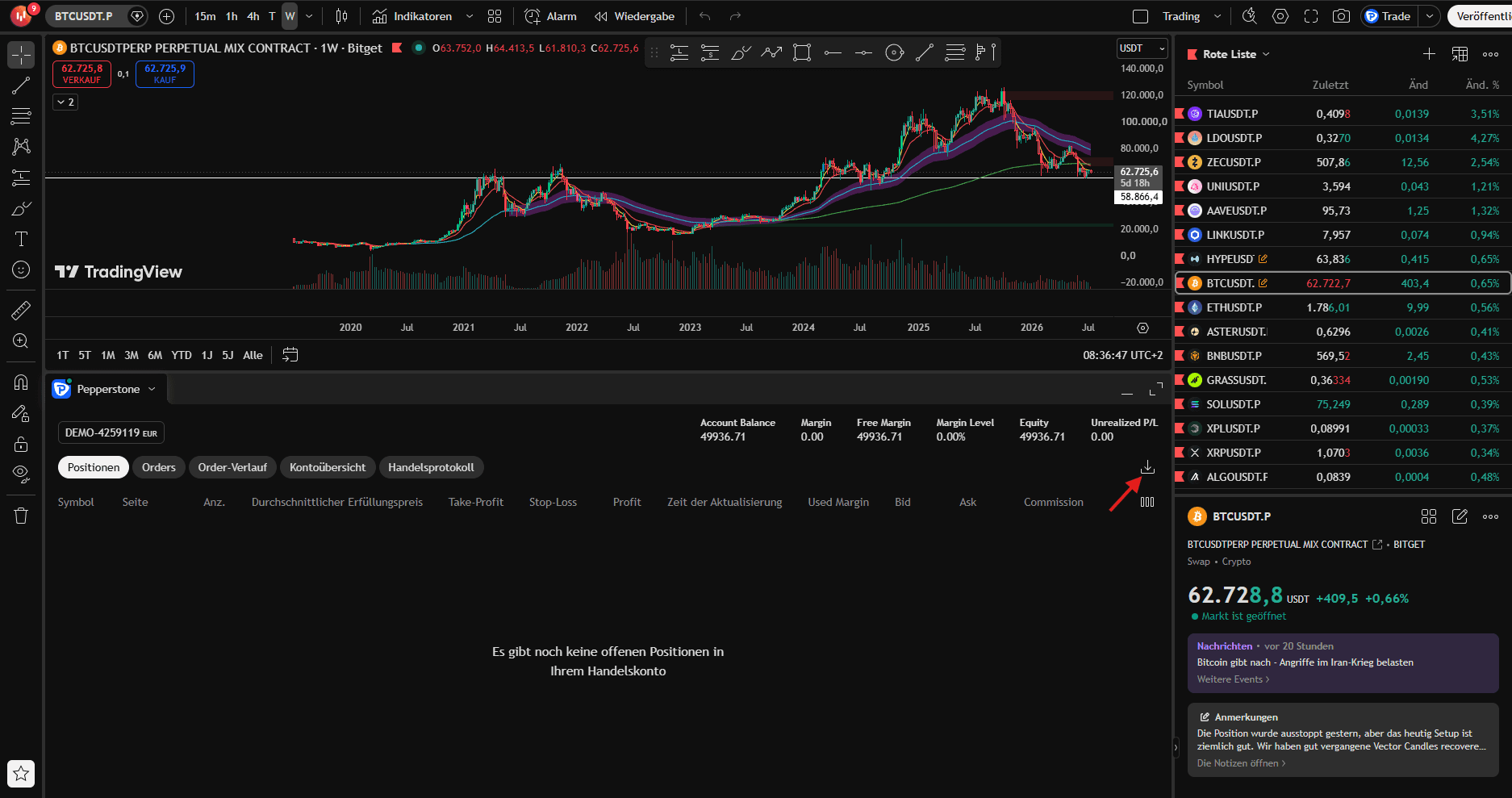
TradingView mit Pepperstone verbinden
Öffne TradingView, verbinde dein Pepperstone-Konto über das Handels-Panel und in die Tradingübersicht und klicke auf "Daten herunterladen".
- 2
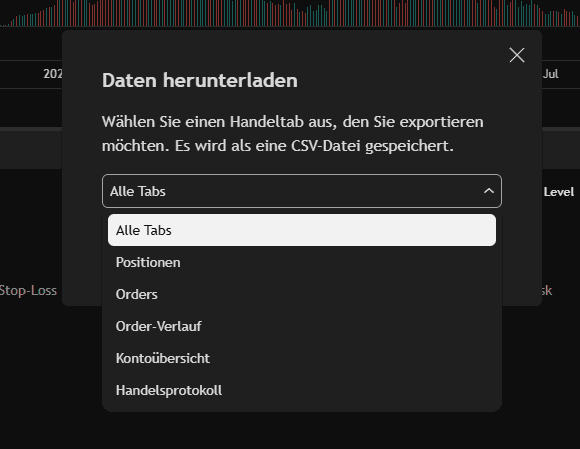
Zeitraum wählen & exportieren
Wähle "Alle Tabs" aus und exportiere die Order-Historie als CSV und lade sie hier hoch.
Route 2: MT5 account history report
For accounts you trade through MetaTrader 5. The report lists every closed position as one row with the result already calculated, so no pairing is required.
- 1
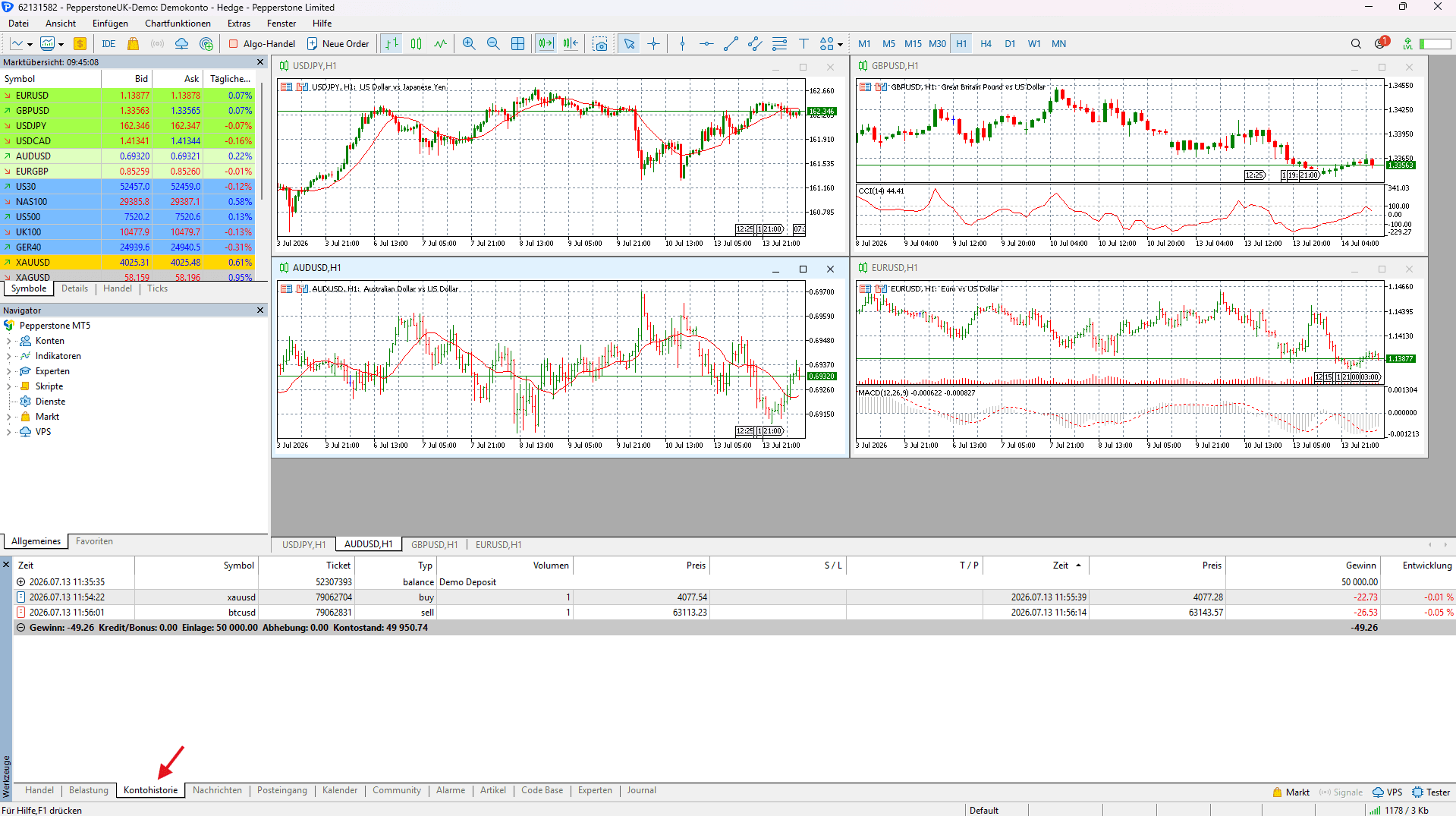
History-Tab im MT5-Terminal öffnen
Öffne im MetaTrader-5-Terminal unten den Bereich "Toolbox/Werkzeuge" und wähle den Reiter "History" (Kontohistorie).
- 2
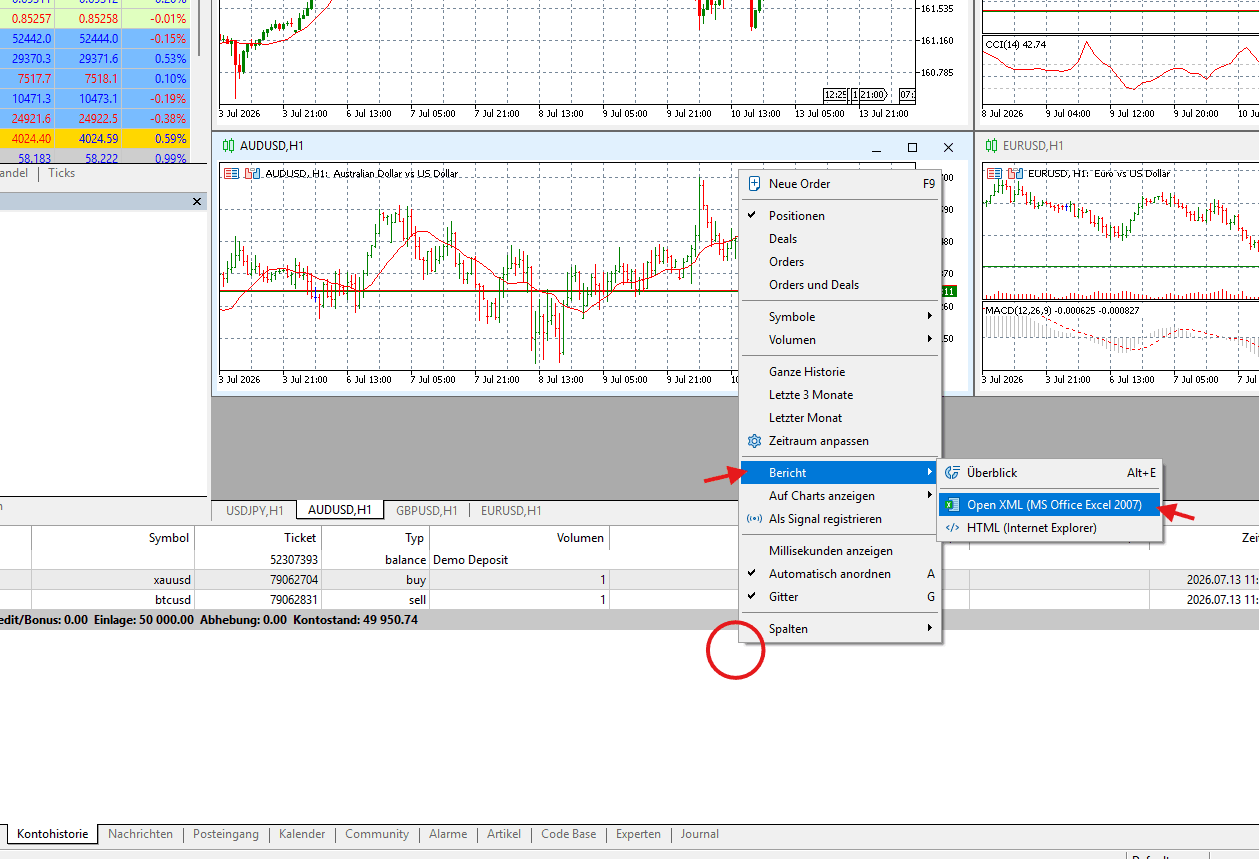
Zeitraum wählen & Report erstellen
Wähle per Rechtsklick den gewünschten Zeitraum ("Custom Period"), sodass alle geschlossenen Positionen enthalten sind, klicke dann rechts erneut und wähle "Report" → "Open XML".
What gets imported
The two routes deliver differently structured files. What ends up in the journal is the same either way.
| Source | Journal field | Note |
|---|---|---|
| Symbol | Symbol | Broker suffixes are preserved and stay distinguishable |
| Direction | Long or short | Stated directly by MT5, derived from the opening order in TradingView |
| Result | Result (net) | Already net in both routes, commission and swap included |
| Commission, Swap | Fees | Informational only, already deducted in the result |
| Timestamps | Open and close time | Neither format states a timezone, the wall clock is kept as is |
| Position or order number | External ID | Basis for duplicate detection on a repeated import |
What to watch out for with Pepperstone
Because two different sources are on offer, the traps here differ from providers with a single export.
Commit to one route per account
Unlike FTMO, the two Pepperstone routes do not deduplicate against each other, because TradingView and MetaTrader assign different identifiers to the same position. Upload the same period once as a TradingView export and once as an MT5 report and your trades will appear twice in the journal.
The TradingView export needs the "All tabs" option
The trading overview is split across several tabs. Exporting only one of them leaves gaps in the order history, and the pairing of opening and closing orders cannot resolve completely. Individual trades then arrive without entry data, or do not arrive at all.
Both formats report the result already net
In the TradingView export and in the MT5 report alike, commission and swap are already deducted from the stated result and appear separately as their own columns. Subtracting them again in a spreadsheet of your own double counts the costs, and it does so on every single trade.
Neither format states a timezone
TradingView and MetaTrader both omit the timezone from the file, and MetaTrader additionally shows the broker server clock rather than your local time. The timestamps are therefore taken unchanged. For time of day analysis you should know how many hours your terminal sits away from you.
Which analysis pays off in forex trading
In currency and CFD trading the timing often matters more than the instrument selection. Spreads widen noticeably outside the main sessions, and a setup that works at ten in the morning can fail on costs alone at two at night.
The two most worthwhile cuts are therefore by time of day and by symbol. Many accounts owe their entire result to two or three currency pairs while the rest quietly produces costs. That only becomes visible once trades are grouped instead of summed.
For positions held overnight, add a look at swap costs. Both export formats carry them as their own column and they travel into the journal as fees, so their share of your result can be quantified over longer periods.
Trading journal: What a trading journal does, which metrics matter and how it differs from a spreadsheet template.
TradingView export or MT5 report
Both give you solid data. The difference lies in how the file is built.
| Criteria | TradingView export | MT5 report |
|---|---|---|
| Structure | List of individual orders, paired on import | One row per closed position |
| File format | CSV | XLSX through the report function |
| Language dependent | Yes, status must be English or German | Yes, section title must be English or German |
| Positions opened before the period | Entry data missing, result correct | The row is either complete or absent |
| Recommended for | Accounts you trade through TradingView | Accounts you trade through MetaTrader 5 |


Common questions about importing Pepperstone trades
Supercharge yourtrading performance
Start from zero with Momentum. Use our tools to improve your trading performance.