
 TradingView integration
TradingView Trading Journal
The order export comes from the TradingView terminal itself, so any broker account you connected there can be analysed.
- Free for your first 25 trades
- No credit card required
- No access to your broker account, you upload the file yourself
Can you import your TradingView trades?
Yes, through the order export in the trading panel. You need a broker account connected inside TradingView, because only then does TradingView keep a real order history with results attached.
The export comes from the TradingView terminal, so it is structured identically for every broker connected there. It works for brokers that appear nowhere else on this site. Unlike most providers, though, the file is a list of individual orders rather than a list of finished positions.
Broker independent
One format for every broker account connected through TradingView.
Automatic pairing
Opening and closing orders are merged into trades per symbol.
Every account together
TradingView accounts and other providers in a single analysis.
How to export your orders
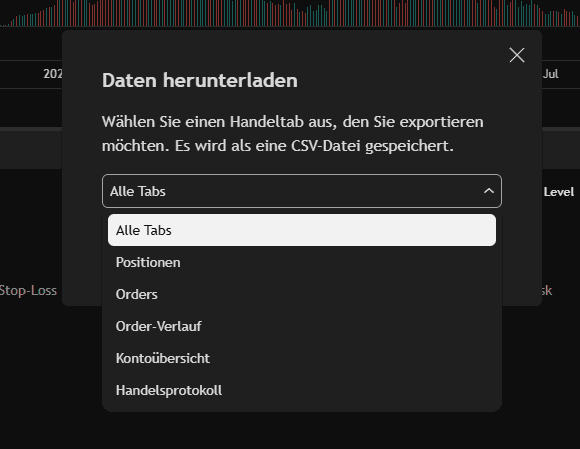
The export sits in the trading overview of the panel. The "All tabs" option matters: without it parts of the history are missing and the pairing of orders cannot resolve completely.
Download the order history as CSV
Connect your broker account through the trading panel and open the trading overview. When exporting, pick a period that contains both the opening and the closing orders of your trades.
- 1
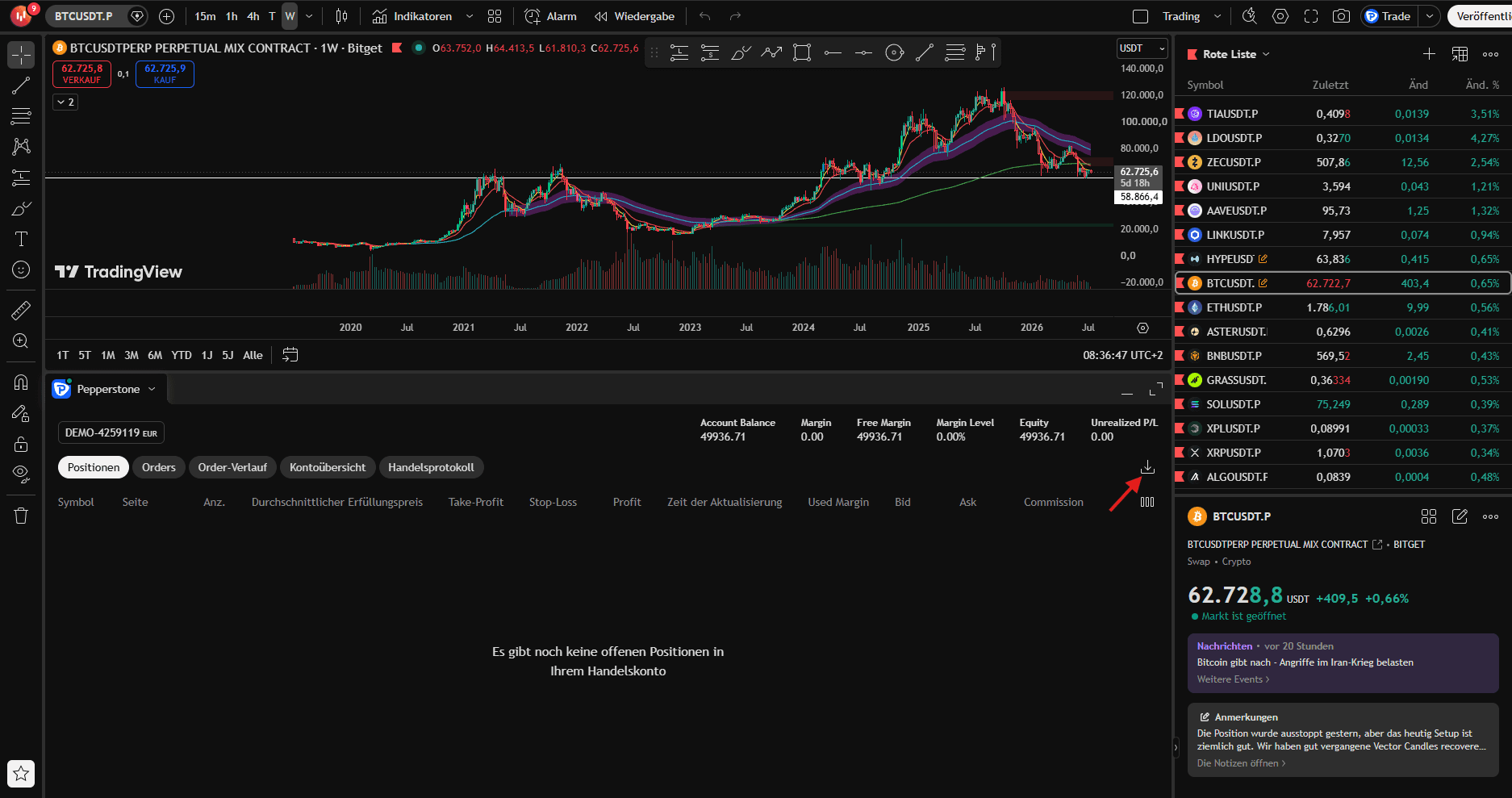
TradingView öffnen
Öffne TradingView, verbinde dein Broker-Konto über das Handels-Panel und in die Tradingübersicht und klicke auf "Daten herunterladen".
- 2
Zeitraum wählen & exportieren
Wähle "Alle Tabs" aus und exportiere die Order-Historie als CSV und lade sie hier hoch.
What gets imported from the order export
The file lists orders, not positions. An opening order has empty result fields while the matching counter order carries the result your broker already calculated. The importer merges the two into one trade.
| Export column | Journal field | Note |
|---|---|---|
| Symbol | Symbol | |
| Side | Direction | The trade direction comes from the opening order |
| Status | Filter | Only filled orders count, everything else is skipped |
| Update time | Open and close time | No timezone given, the wall clock is kept as is |
| Average fill price | Entry and exit | |
| Profit | Result (net) | Swap and commission already included, see the pitfalls |
| Commission, Swap | Fees | Informational only, already deducted in the result |
| Order number | External ID | Basis for duplicate detection on a repeated import |
What to watch out for in the TradingView export
The export is an order list rather than a position list. Most of the traps follow from that single difference.
One position spans two rows
The opening order leaves profit, swap and commission empty, and only the closing order carries the result. The importer pairs them per symbol on a first in, first out basis. Dropping the file straight into a spreadsheet without that pairing counts every trade twice and leaves half of them with no result at all.
Only German and English status values are recognised
Whether an order actually filled is recorded in the status column, and that column is localised. The recognised values are "filled" and "ausgeführt". If your TradingView interface runs in another language, every row is treated as unfilled and the import comes back empty. Switch the interface briefly and export again.
The profit column is already net
Verified against real export data: profit equals gross profit plus swap plus commission. On a EURUSD trade with four cents gross profit and six cents commission, the profit column reads minus two cents. Subtracting the commission a second time turns a small loss into one twice its size.
Positions opened before the export period lose their direction
When a position was opened before the range you selected, its opening order is missing from the file. The importer then derives the direction from the opposite side of the closing order. The result is correct, but the open time and entry price are absent. Choose a generous period to avoid this.
What the export does not answer
An order list tells you what filled. It does not tell you how many of your orders became trades at all and how many were cancelled or never filled. For limit based strategies that is one of the more important questions.
Once orders are paired into positions, the usual metrics become meaningful again: win rate, profit factor, R multiple and the breakdown by symbol. The symbol cut is especially worthwhile with TradingView, because many users trade several asset classes through the same account there.
If you also run accounts outside TradingView, the combined view is where the real gain sits. Only then can you tell whether a strategy genuinely performs better or whether you simply deploy it during a quieter part of your trading day.
Trading journal: What a trading journal does, which metrics matter and how it differs from a spreadsheet template.
Journal or spreadsheet
The order export loads into any spreadsheet. The work starts after that.
| Criteria | With a trading journal | With your own spreadsheet |
|---|---|---|
| Pairing orders into trades | Automatic, first in first out | By hand or with a formula you build |
| Unfilled orders | Filtered out automatically | Distort every count until removed |
| Multiple periods | Merge into one history | Every export stands alone |
| Repeated imports | Duplicates caught via the order number | Overlaps removed by hand |
| Trade notes | Setup, mistakes and screenshots on the trade | Kept apart from the numbers |


Common questions about importing TradingView trades
Supercharge yourtrading performance
Start from zero with Momentum. Use our tools to improve your trading performance.